YouTube Publish Date vs Upload Date: How to Read a Video Timestamp

You find an older YouTube video and want to know exactly when it appeared. The page may say “three years ago,” which is useful for a rough idea but not for citation, chronology or a detailed publishing analysis. A timestamp tool can provide a more precise public publish time—but it is important to understand what that time represents.
Upload time and public publish time can differ
Creators can upload a video as private, schedule it for later, or make it public after reviewing it. In those cases, the moment the file first reached YouTube may differ from the moment viewers could access it publicly. A premiere can also have a scheduled public start. Therefore, a published timestamp should not automatically be described as the date the original file was created or first uploaded.
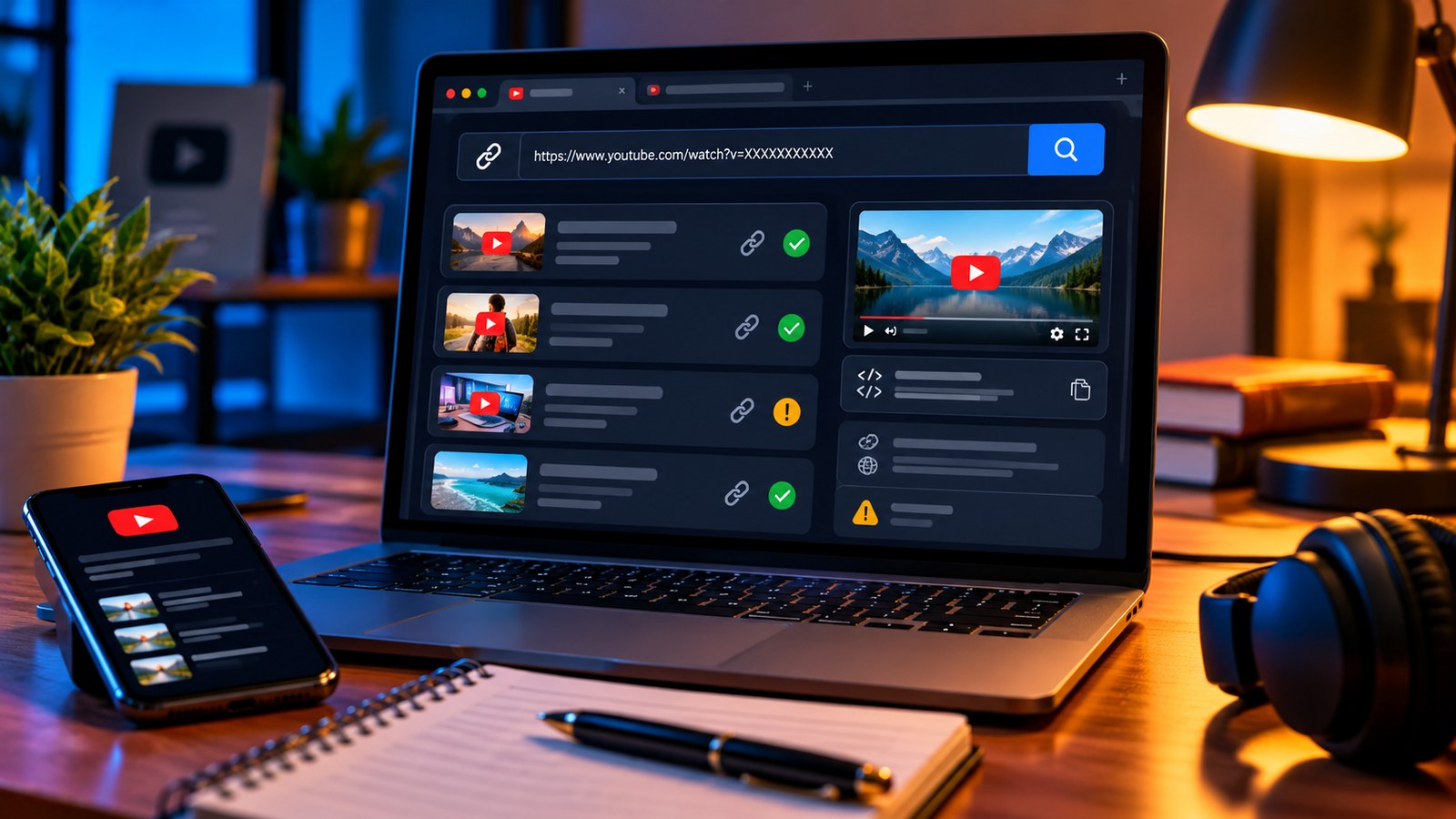
The YTPlayTime Upload Date Finder reads the public publishedAt timestamp returned for a video and presents the date and time in UTC, with a local-time conversion. It is designed to clarify the public publication moment rather than reconstruct a creator’s entire upload history.
Why time zones matter
UTC is a common reference for comparing timestamps from different sources. Your local browser may display the same moment on a different clock time or even a different calendar date. For example, a timestamp near midnight UTC may fall on the previous evening in a time zone west of UTC, or on the next day in a time zone east of UTC.
When comparing several videos, convert them all to one time zone before deciding which appeared first. Otherwise, a difference in display format can make the sequence look inconsistent when the timestamps actually describe the same moment correctly.
A reliable way to verify a video date
- Copy the direct public video URL or ID.
- Paste it into the Upload Date Finder.
- Note the full timestamp and whether the display is UTC or local time.
- If you are writing a report, state which meaning you need: public publish date, not original file creation time.
- Cross-check the video page and channel timeline where the chronology matters.
For a channel-wide list, use the Channel History Viewer to browse public uploads. A timeline makes it easier to locate a video, while the date finder is better for inspecting one specific timestamp.
Common mistakes to avoid
Do not treat “X years ago” as an exact date. Do not assume the video’s description, copyright year or events shown in the footage prove the day it was published. And do not infer that a timestamp tells you when the content was filmed, edited or first saved.
Public metadata can also be unavailable or change in how it is displayed. If a tool cannot retrieve a date, record that limitation instead of inventing a value. For academic or journalistic work, save the direct source URL and the date you accessed it, then explain the timestamp convention you used.
Where exact dates are useful
A precise public timestamp can help you cite an instructional video, arrange a set of public uploads chronologically, compare a publishing calendar with an announcement, or find a recording around an event. It is less useful when the question is how old the underlying footage is or when the creator originally prepared the file.
The safest habit is to name the timestamp accurately. “Published publicly on…” is different from “originally uploaded on…” and from “recorded on…”. Making that distinction keeps a timeline honest and helps other readers reproduce your research.