How to Use a YouTube Video Duration Checker in a Creator Workflow

A video’s duration looks like a minor detail until it causes a problem. A lesson may not fit a planned class, an editor may use an outdated timecode, or a creator may promise a quick tutorial that turns out to be much longer than expected. Checking the runtime early is an easy way to make a production workflow more reliable.
When should you check the runtime?
Use a duration check when you are:
- Planning a playlist, course or training session.
- Preparing a schedule for a series of uploads.
- Comparing the time commitment of several public videos.
- Updating notes, chapter references or a resource list.
- Confirming that a public video is the intended version before linking it.
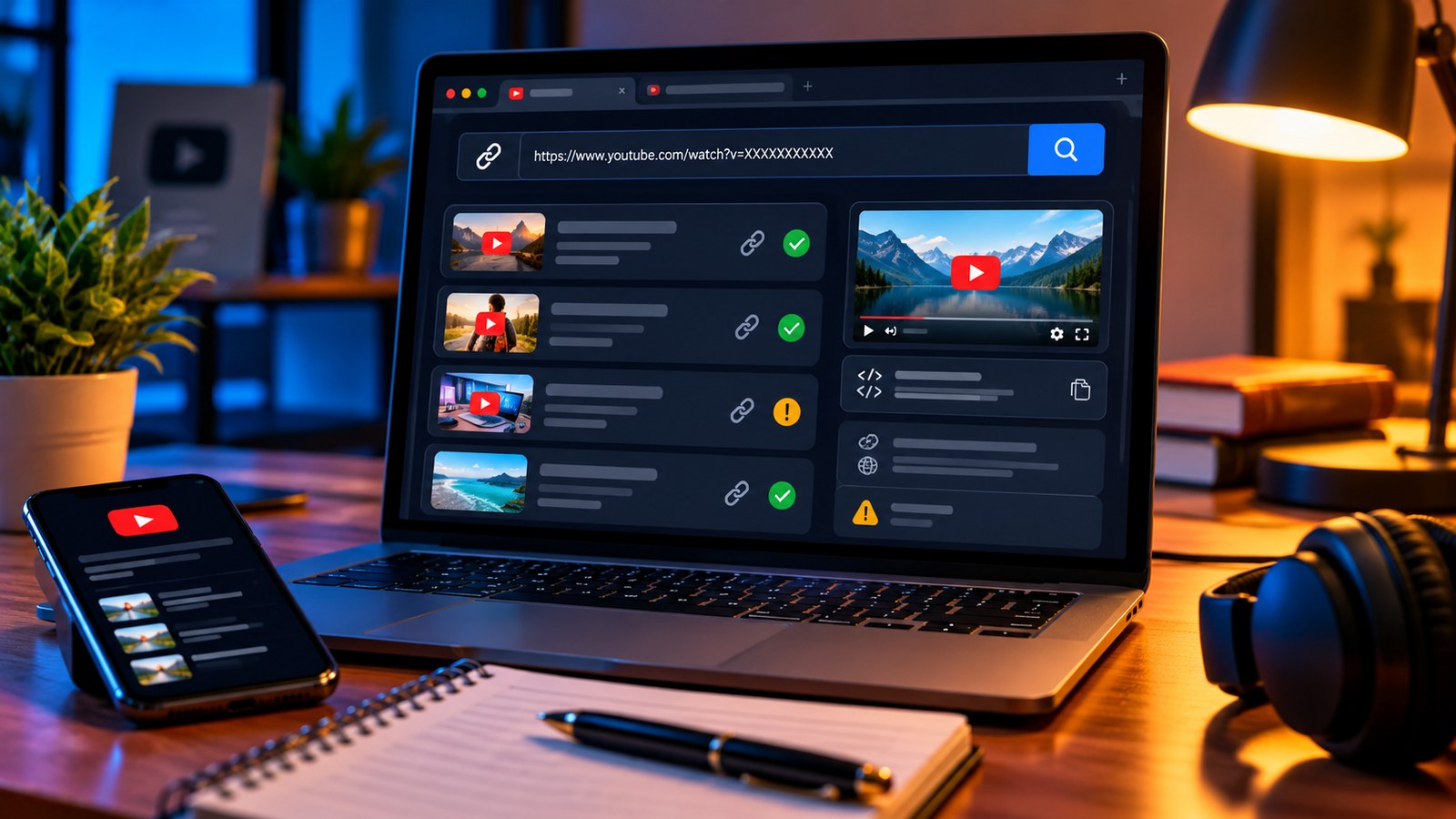
The YTPlayTime Video Duration Checker accepts a video link and reports the available duration, with playback-speed estimates for planning. It works best as a quick reference point before you finalise the schedule.
Use the duration for planning—not as a quality score
Imagine a team has three training videos that run 8, 17 and 24 minutes. The total is 49 minutes before questions, pauses or practice. If the session is booked for one hour, the team has only about eleven minutes left for discussion. The runtime turns a vague guess into a practical decision: split the session, shorten the lecture segment, or reserve more time.
A creator can use the same idea when outlining a series. If every tutorial is expected to take ten minutes, a 28-minute draft signals that the topic might need clearer sections or a separate follow-up. It does not mean the video should be cut automatically; some subjects genuinely require more time.
Playback speed changes clock time
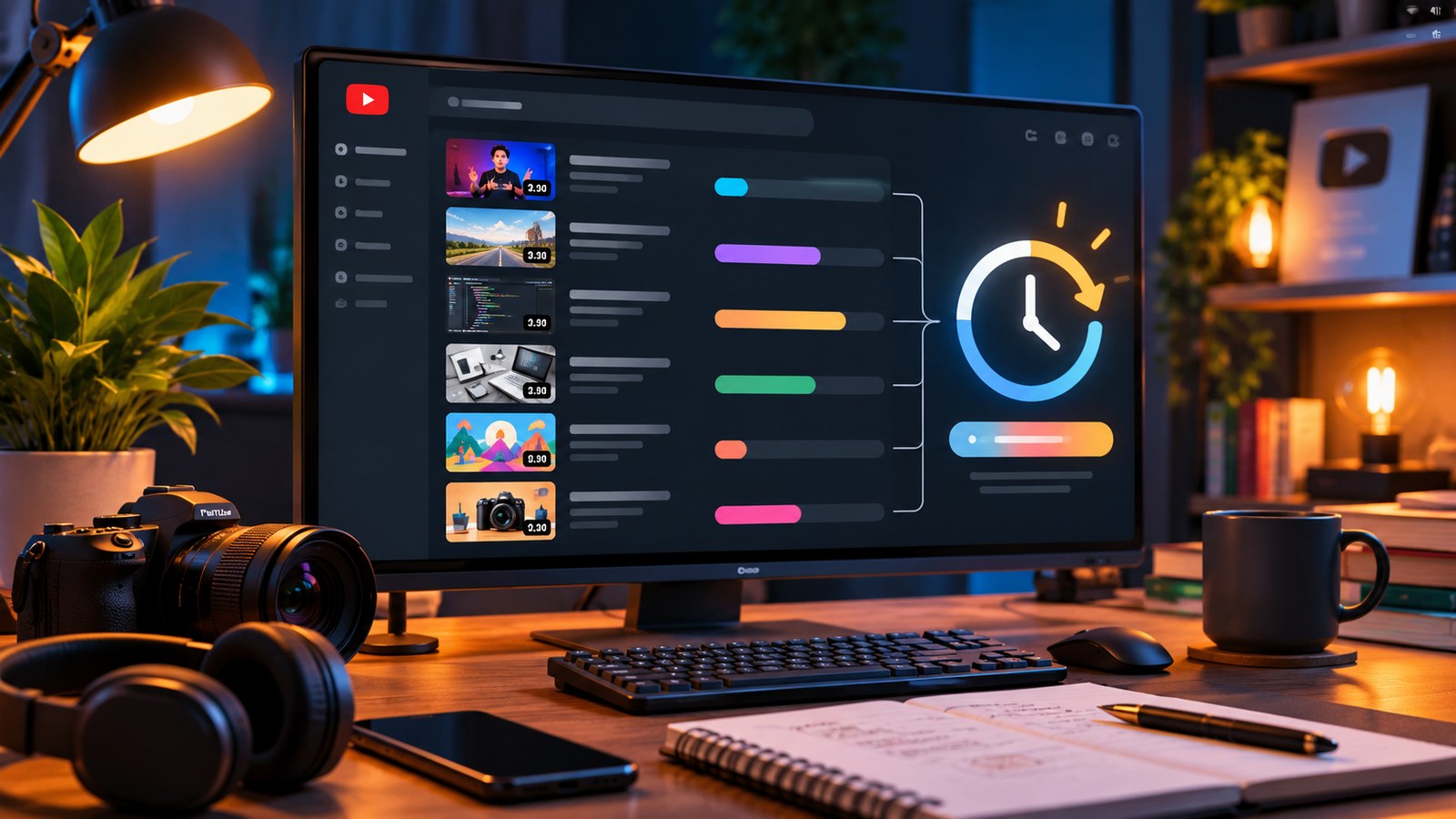
Duration and viewing time are not identical when someone changes playback speed. For a 30-minute video, the theoretical clock time is 20 minutes at 1.5x and 15 minutes at 2x, before pauses or rewinding. Faster playback can be useful for familiar material, but demonstrations, instructions and complex explanations may need normal speed.
Treat speed estimates as planning math, not a promise about how long a person will need to learn the material. If viewers must follow along, practise a task or take notes, allow extra time.
Verify time-sensitive details manually
A duration checker can only report the information available to it. Live streams, premieres, private or removed videos, and recently changed uploads may not expose a final runtime in the same way as a normal public video. If exact timing matters, open the actual video and confirm the version, playback duration and relevant chapters before publishing your notes.
Do not confuse an inaccessible result with a zero-minute video, and do not assume a short runtime means the video is suitable for every audience or purpose.
A lightweight pre-publish checklist
- Open the final public video link, not an earlier draft or export.
- Confirm the reported duration and check the video is the expected version.
- Update chapter timestamps, session calendars and references if the edit changed.
- If the content belongs to a playlist, calculate the playlist total too using the Playlist Length Calculator.
- Allow room for pauses and questions when planning an actual viewing session.
A duration check takes little time, but it can prevent small timing errors from spreading through a calendar, syllabus or production handoff. Use it as one step in a careful workflow, then review the video itself whenever precision matters.