Private, Unlisted, Deleted or Age-Restricted? How to Diagnose a YouTube Video Link
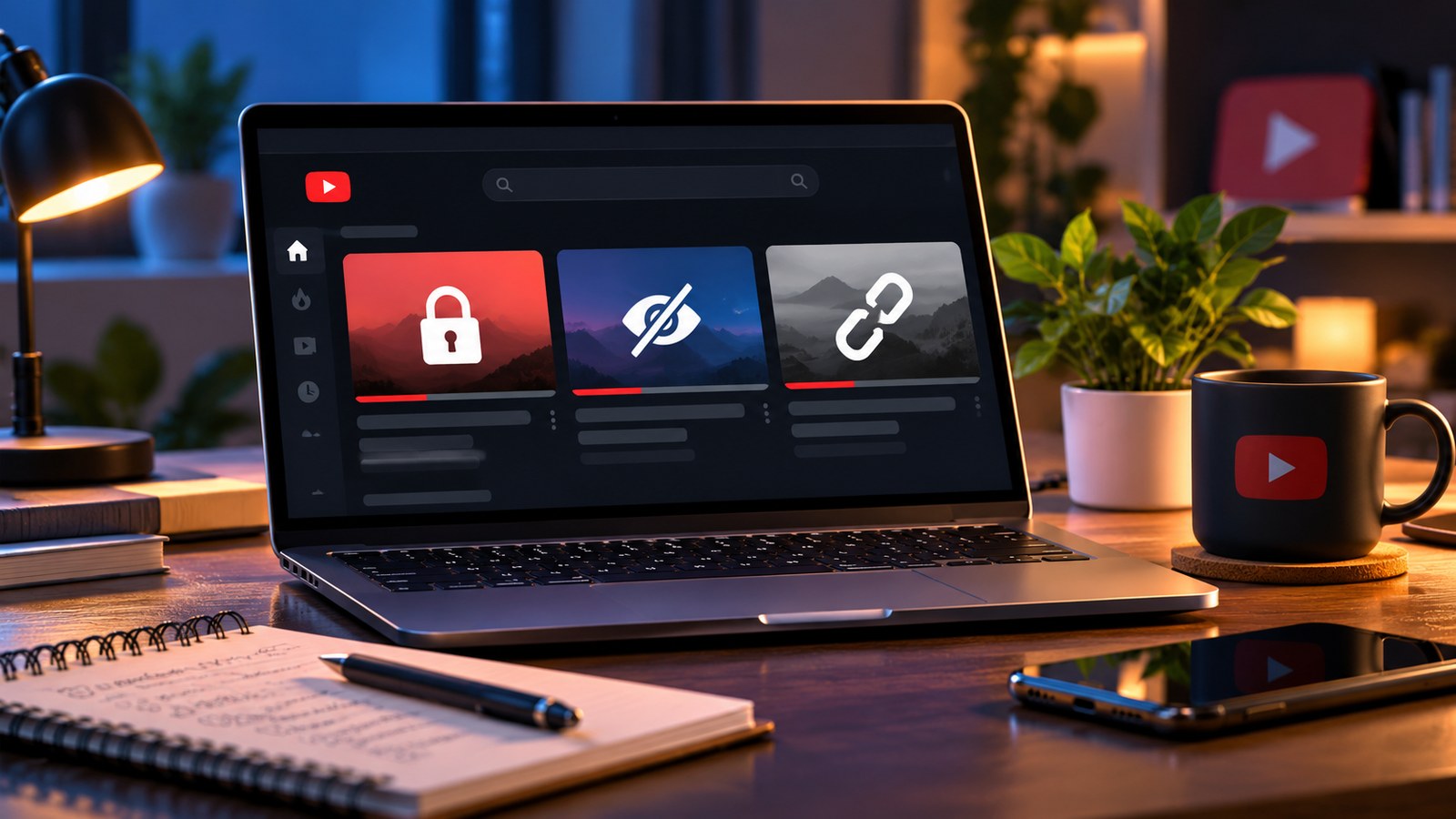
You click a YouTube link and the video will not play. It is tempting to assume the video has been deleted, but one message or failed embed can have several explanations. The video might be private, unlisted and shared incorrectly, removed, age-restricted, region-limited or unavailable for another reason. The correct next step depends on the status.
Private and unlisted are not the same
A private video is restricted to the people the owner has permitted to view it. Having the URL alone does not grant access. If you need to watch it, ask the owner to share access through YouTube’s supported process.
An unlisted video generally does not appear in public search or on the channel’s public video list, but anyone who has the link can view it unless another restriction applies. The link can be forwarded, so unlisted is not the same as confidential.
A deleted video has been removed from YouTube by its owner or through another removal process. A third-party checker may be able to report that a link is no longer available, but it cannot restore the original video. In some cases, an archive may have a record of the page, but that does not guarantee the video itself is available or that you have permission to reuse it.
An age-restricted video may require a signed-in adult account and may not play in every context or embed. This is different from a private video: the restriction concerns eligibility to view the content, not simply a list of people invited by the owner.
A simple troubleshooting sequence
- Open the link directly on YouTube instead of relying only on an embedded player.
- Check that the URL is complete and points to the intended video.
- If YouTube displays a restriction message, read it rather than guessing from the thumbnail.
- If the item is private, request access from the owner. Do not try to bypass the setting.
- If the video is unavailable, verify whether you have an old, mistyped or redirected link.
- If the issue appears in an embedded player, test the direct watch page and check whether embedding is allowed.
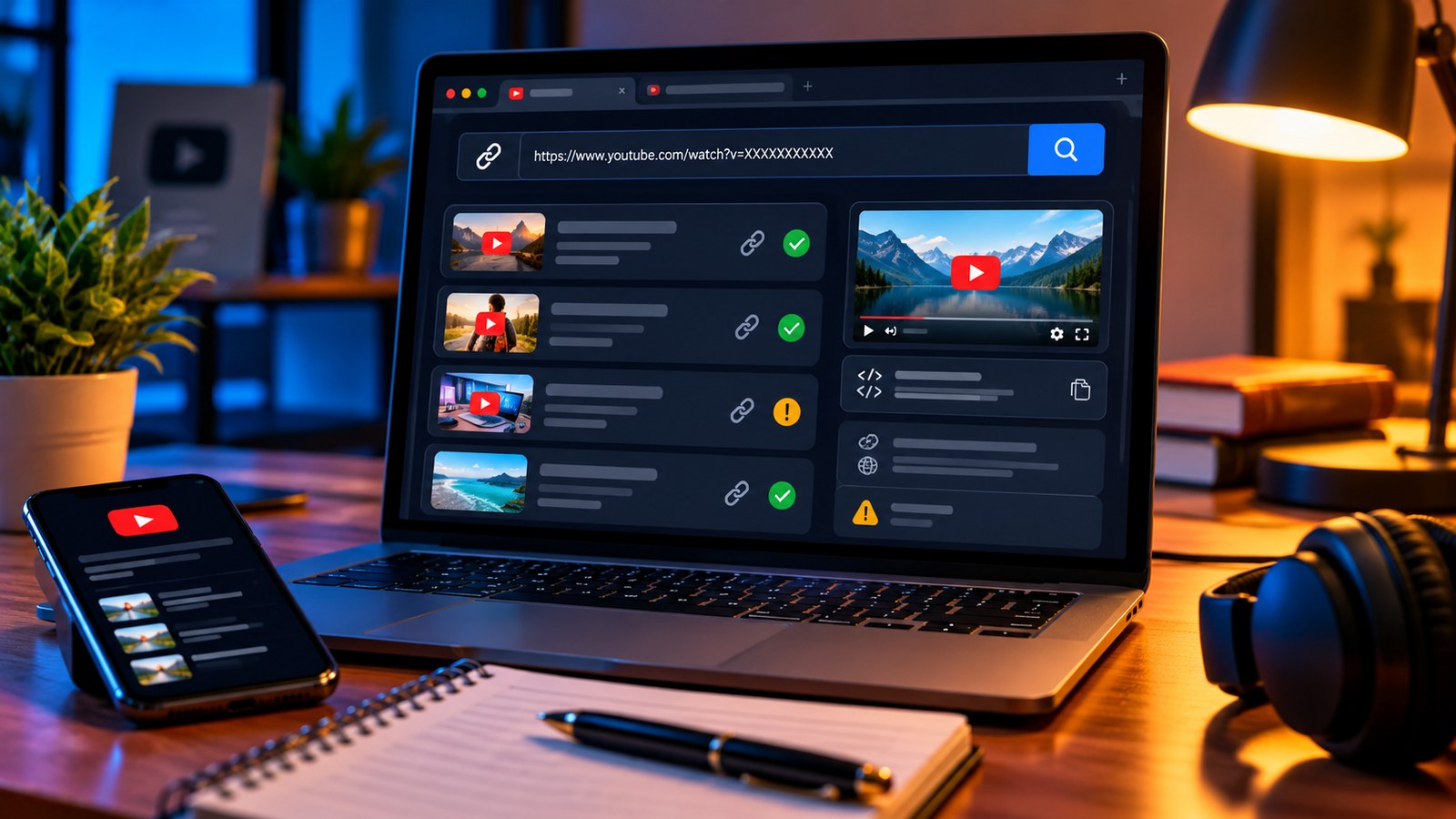
The YTPlayTime Private Video Checker, Age Restriction Checker and Deleted Video Finder focus on different public signals. Use the tool that fits the symptom instead of treating one result as a universal diagnosis.
Understand what a checker can and cannot tell you
Public metadata does not reveal every detail behind a playback failure. A tool may report a status or a clue, but it cannot grant permission to watch private content, remove age restrictions, override geographic limitations or prove why a video was removed. Results may also be limited by what YouTube currently exposes to third-party requests.
When you are checking many links for a classroom, resource list or website, record the date you tested each one. Availability can change after you check. For important references, keep the video title, channel name and a short note about why it matters, so you can find an alternative if it becomes unavailable.
If you own the video
Check the visibility setting in YouTube Studio, confirm the upload finished processing, and review any notices associated with the video. For embeds, use the official embed options and confirm playback permission. If the video should be private, keep it private and share access only with the intended viewers.
For official definitions and current settings, see YouTube’s video privacy settings help. The main rule is simple: diagnose the specific restriction, use the owner’s permission process when required, and never confuse a link check with a way around access controls.